Tuesday, December 21, 2010

LINQ Can Improve Your C# Programming

Introduction

LINQ has its own set of Query operators which make it powerful. These exist in the System.LinqSystem.Core assembly. These are extension methods on the Enumerable and Queryable objects. Namespace within the
The standard LINQ query operators can be classified into the following types:

Qualifiers Operators
Any, All, Contains
Set Operators
Distict, Union, Intersect, Except
Ordering Operators
OrderBy, OrderByDescending , ThenBy , ThenByDescending , Reverse
Equality Operators
SequenceEqual
Conversion Operators
Cast, ToArray, ToList, ToDictionary, OfType, SingeOrDefault
Grouping Operators
GroupBy
Joining operators
Join, GroupJoin
Element Operators
First, FirstOrDefault,ElementAt
Partitioning Operators
Take, Skip, TakeWhile, SkipWhile
Projection Operators
Select , SelectMany
Aggregate Operators
Count, Sum ,Min, Max, Average, Aggregate
Restriction Operators
Where
Concatenation operators
Concat
Generation Operators
Range, Repeat

This article will focus on a handful of LINQ queries that can improve our C# programming.

1.   Avoiding FOREACH on Collections to Filter for Data

You can avoid the FOREACH and the IF clauses inside your FOREACH to filter for data. Check the below sample that eliminates the confusing conditional statements with a simpler LINQ query.
LINQ CODE
 var filteredUsers = from currentUser in Users
                                where currentUser.Active && currentUser.AllowLogin&& ! urrentUser.LoggedIn
                                select user;

2.   Select X Rows

When we have to select a few rows from a collection, we check the loop counter with a fixed constant and break the for loop or control the loop counter.
               
LINQ CODE
 var filteredUsers = Users.Where(u => u.Active && u.AllowLogin && !u.LoggedIn)
                                                  .Take(10)

3.   Take the First Element from a Collection

We face lot of situations where we have to read the first element in a collection. We would start off by evaluating the collection with null and then its elements count and so on. Now, there is a possibility that this collection might be empty.

LINQ CODE
List<string> adminUsers = RetrieveUsersForAdminRole(RoleType.Admin);
  User firstUser = adminUsers.FirstOrDefault();
   If there are no users found, it returns the default value of the underlying type.

4.   Let Go the IComparer<T> for Sorting

We no more need to write the tough IComparer classes to sort our custom data. We can now use the OrderBy method to order the data. Look at the sample query below for more brevity.
LINQ CODE
var filteredUsers = Users.Where(u => u.Active && u.AllowLogin && !u.LoggedIn).OrderBy( u => u.Name);

The ORDERBY function takes in a parameter that is used to sort. If you want do a multi-sort , use the THENBY operator.
LINQ CODE
var filteredUsers = Users.Where(u => u.Active && u.AllowLogin && !u.LoggedIn).OrderBy( u => u.Name).ThenBy(u => u.Location);
  
Yes, you can sort in a Descending fashion too. LINQ provides the ORDERBYDESCENDING operator for this very purpose.

LINQ CODE
var filteredUsers = Users.Where(u => u.Active && u.AllowLogin && !u.LoggedIn).OrderByDescending( u => u.Name).ThenBy(u => u.Location);
                                 
Note: There is a ThenByDescending operator too.

5.   Do Not Use for Loops to Initialize Arrays

Do not use for loops to initialize arrays. We do this a lot of times to write quick test code. This can be replaced using the System.Linq.Enuemerable.Range method.
Using LinQ it is just one line of code.

LINQ CODE
 int[] monthsInAYearByLINQ = System.Linq.Enumerable.Range(1, 12).ToArray();
                 

6.   Replace Two Similar Loops with Concat

If you have to loop through two arrays which are similar in nature, you can use the Concat extension and write concise code. Now, consider this piece of code which uses the Concat operator.

LINQ CODE
int[] firstArray       = System.Linq.Enumerable.Range(1, 12).ToArray();
int[] secondArray = System.Linq.Enumerable.Range(13, 12).ToArray();
  
foreach (var a in firstArray.Concat(secondArray))
{
allElements.AppendLine(string.Format("{0}", a));
}
                 

7.   Avoid Transformations

A transformation is a technique that you follow to return a new collection that is obtained by looping through another collection and applying filters on them.
Instead of creating a temporary list and then filling it up with users, we can use the LINQ SELECT and the ToArray Method to return the results for us.
LINQ CODE
public Users[] FindUsers(RoleType r)
  {
      return FindUsers()
          .Select(user => new User
                          {
                                FirstName = u.FirstName,           
                                     …
                              });
                 .Where(user => user.Role == r)
          .ToArray();
  }

8.   The Let Keyword

The LET keyword lets you build temporary variables in your LINQ query, so that your SELECT query becomes easier to read, and maintain. It lets you predefine variables at a certain stage of the query that can be used in the rest of the query.
For example, the following query calculates the average twice. This can be replaced by using the LET operator. The query will perform faster as the Average is not calculated twice.
LINQ CODE(Simple Query)
var results= from store in Stores where store.Sales.Average(s => s.Price) > 500
select new
{
Name = store.Name
StoreAveragePrice = store. Sales.Average(s => s.Price)
 };

See the following snippet that uses the LET keyword.
LINQ CODE(Query using Let)
var results= from store in Stores
let AveragePrice =  store.Sales.Average(s => s.Price)
 where AveragePrice > 500
select new
 {
Name = store.Name
StoreAveragePrice = AveragePrice
 };
                 

9.   RegEx + LINQ?

LINQ queries can help you work with Regular Expression results and make your henceforth queries simpler. Look at the following sample that iterates over a collection iterating them over the regex expression.
Note that you can do other LINQ queries on the RegEx Matched results.

LINQ CODE
List<string> examinerStatements = new List<string>();
examinerStatements.Add("Mark was present.");
examinerStatements.Add("Julie was present.");
examinerStatements.Add("John was absent");
 
System.Text.RegularExpressions.Regex myRegEx = new System.Text.RegularExpressions.Regex("present");
 
var presentStudents = examinerStatements
.Where<string>(statement => myRegEx.IsMatch(statement))
.ToList<string>();
 
foreach (var examinerStatement in presentStudents)
{
       //
}
                 

10. Querying ArrayList

You would have found that you cannot run LINQ queries on an ArrayList. That is because it does not implement the System.Collections.Generic.IEnumerable<T> interface.

LINQ CODE
List<string ArrayList myList = new ArrayList();
                                myList.Add("One");
                                myList.Add("Two");
                                myList.Add("Three");
                    
var results = from value in myList select new { value };
                 
You can use the Cast Operator in such cases. The modified code snippet below shows you how to use that.

LINQ CODE
ArrayList myList = new ArrayList();
              myList.Add("One");
              myList.Add("Two");
              myList.Add("Three");
var results = from value in myList.Cast<string>()   select new { value };
                 
  I hope these ten samples helped you learn something new and enjoy reading.

References

Related Articles


Sunday, November 14, 2010

To Access blocked sites: Use Decimal Address


Many times both Domain Name & IP Address are banned, Use Decimal Address to Access that Website

This unique Mathematics based trick will probably work when websites are blocked in your institution or corporate network based on the host name or their IP address.
The trick is to convert the human readable website address that's blocked (like
http://www.facebook.com/) into an IP address (66.220.147.44) and again translate this value to a decimal address which is probably not blocked by the website filters.
Here's a step by step guide to render http://www.facebook.com/ to a decimal address:

How to Access Restricted Websites
1) get its IP address (66.220.147.44), by pinging the name (if you have a direct internet connection) or if you only have access via a web proxy then find it out by using a networking website like network-tools. com.

2) start your PC's calculator, and change it to scientific mode (using the "View" menu)
3) enter each of the four IP octets, one by one, converting them to binary (enter number and click on the "Bin" radio button)
Thus 216.178.39.74 becomes
66 = 1000010
220 = 11011100
147 = 10010011
44 = 101100

Notice how any binary numbers less than 8 digits long have had leading zeroes added to pad them out. Reassembled into IP address order, you get
1000010.11011100.10010011.101100
4) Remove the dots, so you get one huge line of binary, thus: 10000101101110010010011101100
5) Copy this binary string
6) Click on the "Dec" button on your calculator, and you will get the converted value of 280437996
7) Add the hypertext protocol prefix and paste into your browser's address bar: http://280437996
 

Saturday, September 25, 2010

Creating a List Item programmatically using the object model

The below code shows how to create a List Item programmatically using the object model in SharePoint 2007.

Adding a List Item to a Custom List

Unable to find source-code formatter for language: csharp. Available languages are: actionscript, html, java, javascript, none, sql, xhtml, xml
using (SPWeb web = siteCollection.AllWebs["webname"])
{
  SPList list = web.Lists["Custom List"];
  SPListItem item = list.Items.Add();
  item["Title"] = "New List Item";
  item.Update();
}

Optimised Adding a List Item to a Custom List

Use the following to add an item to a list:
Unable to find source-code formatter for language: csharp. Available languages are: actionscript, html, java, javascript, none, sql, xhtml, xml
01: public static SPListItem OptimizedAddItem(SPList list)
02: {
03: const string EmptyQuery = "0";
04: SPQuery q = new SPQuery {Query = EmptyQuery};
05: return list.GetItems(q).Add();
06: }
Do not use SPList.Items.Add as this will get all items in the list before adding a new SPListItem.
Source: Aidan Garnish

Adding a List Item to a Custom List with an Attachment

Unable to find source-code formatter for language: csharp. Available languages are: actionscript, html, java, javascript, none, sql, xhtml, xml
using (SPWeb web = siteCollection.AllWebs["webname"])
{
  SPList list = web.Lists["Custom List"];
  SPListItem item = list.Items.Add();
  item["Title"] = "New List Item";

  SPAttachmentCollection attachments = item.Attachments;
  attachments.Add(fileName, byteArrayContents);

  item.Update();
}

Adding a List Item to a Publishing Page Library

using (SPSite site = new SPSite("http://moss"))
{
    using (SPWeb web = site.OpenWeb())
    {
        PublishingSite pSite = new PublishingSite(site);
        SPContentType ctype = pSite.ContentTypes["Welcome Page"];
        PageLayoutCollection pageLayouts = pSite.GetPageLayouts(ctype, true);
        PageLayout pageLayout = pageLayouts.FirstOrDefault<PageLayout>(p => p.Name == "WelcomeSplash.aspx");
        PublishingWeb pWeb = PublishingWeb.GetPublishingWeb(web);
        PublishingPageCollection pPages = pWeb.GetPublishingPages();
        PublishingPage pPage = pPages.Add("Programmatic_Test.aspx", pageLayout);
        SPListItem newpage = pPage.ListItem;
        newpage["Title"] = "Page added programmatically";
        newpage.Update();

        newpage.File.CheckIn("all looks good");
        newpage.File.Publish("all looks good");
    }
}
NOTE: requires .NET 3.5 for System.Linq FirstOrDefault method, can be switched for a loop.
Source: sridhara

Adding a List Item to a Document Library with an attachment

Unable to find source-code formatter for language: csharp. Available languages are: actionscript, html, java, javascript, none, sql, xhtml, xml
  // Creates document in given list (root folder).
// Returns true if the file was created, false if it already
// exists or throws exception for other failure
protected bool CreateDocument( string sFilename, string sContentType, string sList)
{
    try
    {
        SPSite site = SPContext.Current.Site;

        using (SPWeb web = site.OpenWeb())
        {
            SPList list = web.Lists[sList];
            // this always uses root folder
            SPFolder folder = web.Folders[sList];
            SPFileCollection fcol = folder.Files;

            // find the template url and open
            string sTemplate = list.ContentTypes[sContentType].DocumentTemplateUrl;
            SPFile spf = web.GetFile(sTemplate);
            byte[] binFile = spf.OpenBinary();
            // Url for file to be created
            string destFile = fcol.Folder.Url + "/" + sFilename;

            // create the document and get SPFile/SPItem for
            // new document
            SPFile addedFile = fcol.Add(destFile, binFile, false);

            SPItem newItem = addedFile.Item;
            newItem["ContentType"] = sContentType;
            newItem.Update();
            addedFile.Update();
            return true;
        }
    }
    catch (SPException spEx)
    {
        // file already exists?
        if (spEx.ErrorCode == -2130575257)
            return false;
        else
            throw spEx;
    }
}
This code:
1. Gets a SPSite for the current site collection, and opens an SPWeb for the site.
2. Gets a SPList for the given list, and then an SPFolder for the root folder in this list. This code always creates the document in the root folder, but the code can easily be changed to place the document in any folder in the document library.
3. Gets a SPFileCollection for the documents in the folder.
4. "DocumentTemplateUrl" is used to return the Url of document template associated with the given content type.
5. Get an SPFile for the document template in spf and open it for binary access using OpenBinary
6. Add a new document to the folder through the SPFileCollection referenced by fcol.
7. Get an SPItem for the new document and set the "ContentType" column to ensure it uses the correct content type (it will default to the first content type in the document library).
8. Update the item and the added file.
9. The catch section checks for an -2130575257 error, which indicates the file already exists.

Adding a List Item to a Calendar List

Unable to find source-code formatter for language: csharp. Available languages are: actionscript, html, java, javascript, none, sql, xhtml, xml
SPList cal = site.Lists["Calendar"];
SPListItem calEvent = cal.Items.Add();
calEvent["Title"] = "Frequent Event";
string recurrence = "<recurrence><rule>" +
"<firstDayOfWeek>su</firstDayOfWeek>" +
"<repeat><daily dayFrequency='2?/></repeat>" +
"<windowEnd>2010-09-20T09:00:00Z</windowEnd>" +
"</rule></recurrence>";
calEvent["RecurrenceData"] = recurrence;
calEvent["EventType"] = 1;
calEvent["EventDate"] = new DateTime(2009, 1, 26, 8, 0, 0);
calEvent["EndDate"] = new DateTime(2009, 1, 26, 9, 0, 0);
calEvent["UID"] = System.Guid.NewGuid();
calEvent["TimeZone"] = 13;
calEvent["Recurrence"] = -1;
Note that the CAML to create the recurrence can be complicated so please take a look at the MSDN article.

Adding a List Item to a List in SharePoint 2010

In SharePoint 2010 you can use the following code to add an item to a SPList in an optimized way:
Unable to find source-code formatter for language: csharp. Available languages are: actionscript, html, java, javascript, none, sql, xhtml, xml
using (SPWeb web = SPContext.Current.Web)
{
  SPList list = web.GetList(string.concat(web.Url, "/Lists/Custom List"));
  SPListItem item = list.AddItem();
  item["Title"] = "New List Item";
  item.Update();
}

Use PowerShell to Manage Lists, Views, and Items in SharePoint 2010

Creating Lists in SharePoint 2010
One of the most powerful features of SharePoint from an end user’s perspective is the ease of creating and customizing lists, views, and items. Lists store data. SharePoint 2010 includes a large number of list templates that can be used as they are or as a starting point to tailor them to fulfill your specific business requirements. Lists have a set of configurable settings that apply to all lists, as well as custom settings that apply only to the specific type of list used.
Let’s take a look at the templates available. We can do this using the ListTemplates property on an object of the type SPWeb. First, we store an object of the type SPWeb in a variable:
PS > $spWeb = Get-SPWeb -Identity http://SPServer
Next, we use the ListTemplates property and select the name and description, as shown in the following image.
Image of selecting name and description with ListTemplates property
We can use a template when creating a new list (of course we’ll do this by using Windows PowerShell). When creating a list in SharePoint 2010, you use the Add method of the SPListCollection class. This method has seven overloads (method signatures, or ways in which the method can be called). The one we will be using for our example accepts three parameters: the list title, description, and template type to be used. The title and description parameters are both of the type System.String, and the template parameter is of the type SPListTemplateType, so we need to provide an instance of this type as a value for this parameter.
Here, we create a variable containing the Contacts list template type, which we obtain from the Microsoft.SharePoint.SPListTemplateType enumeration:
PS > $listTemplate = [Microsoft.SharePoint.SPListTemplateType]::Contacts
PS > $spListCollection = $spWeb.Lists
PS > $spListCollection.Add("My Contacts","Description",$listTemplate)
Why do we need this intermediary spListCollection variable? Why not call the Add method directly with $spWeb.Lists.Add? If we used the Add method directly and repeated the command ten times, the metadata for all available lists in the site would be loaded ten times. Storing the lists collection in a variable and working with that variable minimizes the amount of memory consumed, because the lists are loaded only once.
Modifying Lists in SharePoint 2010
Let’s see how we can modify our new list. First, we get the list using the GetLists() method and store it in a variable:
PS > $spList = $spWeb.GetList("/Lists/My Contacts")
With the list stored in a variable, we can go ahead and set all kinds of cool stuff. Here’s how to add a list to the Quick Launch:
PS > $spList.OnQuickLaunch = "True"
PS > $spList.Update()
When you run the command above, the list appears on the Quick Launch. Setting the value to False hides the list from the Quick Launch. If we want to change the list’s description, we can simply use the Description property:
PS > $spList.Description = "My Contact List"
PS > $spList.Update()
Adding List Fields
It’s also possible to add additional fields to a list. To create a field in a SharePoint 2010 list, use the Add method provided by the SPFieldCollection class. Here, we create a simple Text type field in a SharePoint list:
PS > $spFieldType = [Microsoft.SharePoint.SPFieldType]::Text
PS > $spList.Fields.Add("TextField",$spFieldType,$false)
In this example, we create an SPFieldType object with the value Text and store it in the variable spFieldType. We then use the Add method and pass in the field’s display name, followed by the variable spFieldType, followed by Boolean False. The last parameter in this overload of the Add method specifies whether the new field is required to always contain a value. Our example creates a new text field in the list with the display name of TextField that will not require any input. An additional Boolean parameter you can use with the Add method compacts the field name to eight characters, if set to True.
SharePoint 2010 supports other types of fields as well. Adding a Choice field is a little different since it requires additional information regarding the possible choices. You can store the choices in an instance of the System.Collections.Specialized.StringCollection class, as shown in this example:
PS > $choices = New-Object System.Collections.Specialized.StringCollection
PS > $choices.Add("First Choice")
PS > $choices.Add("Second Choice")
PS > $choices.Add("Third Choice")
Now that we have our choices stored in a variable, we can use the variable when creating a Choice type field:
PS > $spFieldType = [Microsoft.SharePoint.SPFieldType]::Choice
PS > $spList.Fields.Add("ChoiceField",$spFieldType,$false,$false,$choices)
We use the choices variable to associate a list of options with the field.
Managing List Views
Let’s move on and look at how to manage list views in SharePoint 2010. Views enable you to create customized representations of list data for specific purposes, such as displaying specific fields. When a new list in SharePoint is created, a default view is added. Document Library lists get the All Documents view, Picture Library lists get the All Pictures view, and most of the other list types get the All Items view.
Before we can edit an existing view in SharePoint 2010, we need to retrieve it. We can use the GetViewFromUrl method of the SPWeb class. Let’s get the Contacts list we created earlier:
PS > $spView = $spWeb.GetViewFromUrl("/Lists/My Contacts/AllItems.aspx")
When new fields are created, they are not added to a view by default. We can, of course, add a field to a view by using Windows PowerShell. First, we need to create a reference to the field that we want to add to the view:
PS > $spField = $spList.Fields["TextField"]
We then can use the Add method provided by the SPViewFieldCollection class to add the field to a view and finally use the Update() method to set the changes:
PS > $spView.ViewFields.Add($spField)
PS > $spView.Update()
You can do a lot more cool stuff with views such as set custom queries, create new views, and remove views.
Managing List Items
Let’s move ahead and take a look at how to add list items to a list. The SPList class provides the AddItem method, which is used to create new list items. When you call the AddItem method, an object of the type Microsoft.SharePoint.SPListItem is returned. Because we want to populate the properties of the new list item, we need to store the object in a variable in order to continue to work with it:
PS > $spListItem = $spList.AddItem()
Now we can start assigning values to the different fields the corresponding list item inherits from the parent list. The SPListItem class provides a parameterized Item property for accessing the value contained in a particular field. To specify the value of the Title field, we can use the following:
PS > $spListItem["Title"] = "New Item"
We can assign additional values to fields as well. In the next example, we add values to the TextField and ChoiceField, which we created earlier in this example:
PS > $spListItem["TextField"] = "Hey hey"
PS > $spListItem["ChoiceField"] = "First Choice"
Finally, we use the Update() method to create the new list item:
PS > $spListItem.Update()
What if we want to update an existing list item? Well, the SPList class provides a few methods we can use to retrieve a specific from a list. The most common methods are GetItemById() and GetItems().
Wait a minute! Isn’t it simpler to loop through the Items collection and create a filter using the Where-Object cmdlet? It is simpler and does feel like the Windows PowerShell way of doing things, but consider this: When you use the Items property on an SPList object, all the list items in the list are read into memory, meaning that large lists may consume a lot of memory. A better approach is to use either the GetItemsById() method or the GetItems() method to minimize memory consumption.
The GetItemById() method requires that we know the ID of the particular item. In many cases, we have no idea of an item’s ID, but we might know the item’s title or some other value. This is where the GetItems() method becomes useful. The method returns all list items or a subset of list items as defined by search criteria in a CAML query.
To use a CAML query with the GetItems method, we first need to create an object of the type Microsoft.SharePoint.SPQuery:
PS > $spQuery = New-Object Microsoft.SharePoint.SPQuery
The SPQuery object supports the Query property, which we use to place a CAML query. Here’s the CAML query we’ll use in our example:
PS > $camlQuery =  >> ‘<Where><Eq><FieldRef Name="Title" /><Value Type="Text">True</Value></Eq></Where>'
We create a new query containing a Where statement using the <Where> tag. Next, we specify an equals expression using the <Eq> tag. For other types of searches, you can replace this tag with the appropriate one, such as <Lt> or <Gt> to search for list items where the value of this field is less than or greater than a value, respectively.
We then specify the field we want to query against using the <FieldRef> tag. In this example, we want to look at the Title field in the list. Finally, we use the <Value> tag to specify that the value type is Text and that the value should equal New Item.
After we have created a CAML query and stored it in a variable, we assign it to the Query property of our SPQuery object:
PS > $spQuery.Query = $camlQuery
Before using the SPQuery with the GetItems method, we should specify the RowLimit property that is used to limit the amount of items returned per page. If we run the SPQuery without setting the row limit, the query will select all items matching the criteria and might fail on lists with a large number of items:
PS > $spQuery.RowLimit = 100
Here, we set the RowLimit property to 100 so that only 100 list items are returned per page. The RowLimit value should be between 1 and 2000. Finally, we can call the GetItems() method with the SPQuery object instance we created earlier for input:
PS > $spListItem = $spList.GetItems($spQuery)
Now it’s a simple task to update the list item. In the example below, we change the item’s Title. Note that the GetItems() method returns a ListItemCollection, so even if only one value is returned, we still have to index the first element or use the ForEach-Object cmdlet to loop through each item:
PS > $spListItemCollection | ForEach-Object { >> $_["Title"] = "New Value"; $_.Update()  >>}
Summary
In this post, we’ve looked at how to manage lists, views, and items by using Windows PowerShell. We saw examples about how to create new lists, modify list properties, add fields, manage views, and how to work with items. Chapter 14 in PowerShell for SharePoint 2010 Administrators (available October 2010) takes list and view management one step further by showing how to manage lookup fields, how to retrieve lists using a simple function, how to automate list creation, and much more. In Chapter 15, you’ll see detailed examples about how to create, manage, delete, and copy list Items.

C# Code Performance Measurement

Many times we need to check the performance of the our C# code. so following is the workaround with an example. ..
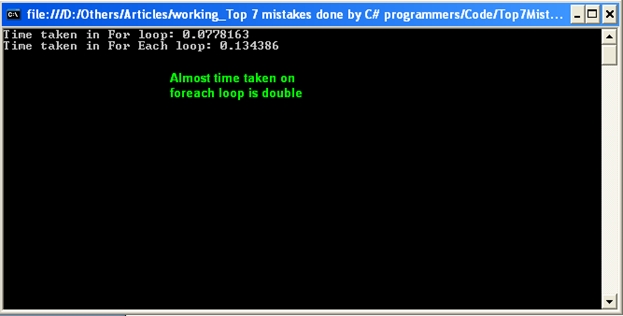
Most developers prefer to use a foreach loop than for loop because foreach is easier to use. This will however prove to be costly when working with collections with a large amount of data. Consider the below sample in which I am looping through the same datatable using for and foreach. Also check the time taken by each loop on Fig 1.0.
  static void Main(string[] args)
  {
      DataTable dt = PopulateData();
      Stopwatch watch = new Stopwatch();
  
      //For loop
      watch.Start();
      for (int count = 0; count < dt.Rows.Count; count++)
      {
          dt.Rows[count]["Name"] = "Modified in For";
      }
      watch.Stop();
      Console.WriteLine("Time taken in For loop: {0}", watch.Elapsed.TotalSeconds);
 
      watch.Reset();
      //Foreach loop
      watch.Start();
      foreach (DataRow row in dt.Rows)
      {
          row["Name"] = "Modified in ForEach";
      }
      watch.Stop();
      Console.WriteLine("Time taken in For Each loop: {0}", watch.Elapsed.TotalSeconds);
  
      Console.ReadKey();
  }

Fig 1.0
As you can see the foreach loop is slow, it takes almost double the amount of time as that of the for loop. This is because in the foreach loop dt.Rows will access all the rows in the datatable.
For bigger collections always use for loop in case if looping is required.