Showing posts with label Design. Show all posts

Thursday, October 6, 2011

Use Rich Textbox of SharePoint 2007 in a custom asp.net page or user control

Many times while creating Custom SharePoint Form using ASP.net you need RichTextBox.
In SharePoint Controls there is a InputFormTextBox control that can be used as a RichTextBox. It control give same functionality and user interface as in SharePoint.
Take a look.


1. Add following tag (If you not added before) to Register the SharePoint DLL in your custom page or user control.

<%@ Register TagPrefix="SharePoint" Namespace="Microsoft.SharePoint.WebControls" Assembly="Microsoft.SharePoint, Version=12.0.0.0, Culture=neutral, PublicKeyToken=71e9bce111e9429c" %>

2. Add InputFormTextBox Control tag on the Page.
<SharePoint:InputFormTextBox runat="server" ID="TxtBody" ValidationGroup="CreateCase" Rows="8" Columns="140" RichText="true" RichTextMode="FullHtml" AllowHyperlink="true" TextMode="MultiLine" />

Enjoy!

Wednesday, August 17, 2011

SharePoint 2010 jQuery: List Scrolling View with Frozen Header


Problem:

Many times SharePoint List has huge amount of records (Number of items) and it’s hard to scroll out the view. Also while scrolling the page we cannot determine which information is from which column.

Solution:

By simple applying CSS we can achieve the Frozen Headers like Excel Sheet. And for achieving the same we use JQuery.

Implementation: 

1. Go to List View Page and Html Form Webpart on the same page.
2. Copy Following code in Html Form Webpart. Just replace the LISTID and VIEWID (Highlighted in yellow color).

<script type="text/javascript" src="/Style Library/jq.Smoothness/js/jquery-1.5.1.min.js"></script>
<style type="text/css">
<!--
.DataGridFixedHeader { position: relative; top: expression (this.offsetParent.scrollTop); background-color: gray;}
-->
</style>
<script type="text/javascript">

$(function(){

var $table = $("TABLE[ID^='{F1D2645C-4CC3-458C-BC93-CBCFECD12171}-{5AB46E0C-D38F-4FF2-BBE0-0D485CC351E9}']:first","#MSO_ContentTable");

<!--WRAP TABLE IN SCROLL PANE-->
$table.wrap("<DIV style='OVERFLOW: auto; HEIGHT: " + (screen.height-400) + "px'></DIV>");

<!--FROZEN HEADER ROW-->
$("TR.ms-viewheadertr:first", $table).addClass("DataGridFixedHeader");

});

</script>

Note:
For IE8 and IE9 browsers, require change in CSS class .DataGridFixedHeader  as follows.
 position: absolute;
Output:

Tuesday, August 9, 2011

Change look and feel of SharePoint Page using JQuery or Apply business logic to SharePoint List Forms using JQuery


As SharePoint 2010 gets popular, more and more scenarios are coming which most of required customization.
As we know SharePoint 2010 provides many options to customize the SharePoint Website, some of listed below…
 
1.    Visual Studio Development
2.    SilverLight Devlopment
3.    ECMA Script Development
4.    JQuery


In this post I am exploring the JQuery Development possibilities in SharePoint 2010.
As jQuery is a fast and concise JavaScript Library. We can easily give dynamic look to SharePoint Website and can also add custom business logic.
Let start the demonstration….

Take a scenario that we have to create Employee Registration Form with Tabular look and also enable disable tabs according to check box or radio button selection.

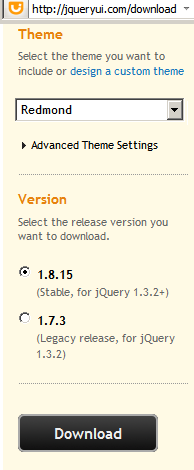
1.    First of all Download JQuery from jqueryui.com

2.    Extract downloaded zip file and Copy all files into SharePoint Site (You can copy all files to Document Library or Can do Drag and drop using SharePoint Designer)


3.    Add following JQuery References to master page before </head> tag.

 <!--JQuery References --> 
<link type="text/css" href="jquery-ui-1.8.15.Redmond/css/redmond/jquery-ui-1.8.15.custom.css" rel="stylesheet" />     
<script type="text/javascript" src="jquery-ui-1.8.15.Redmond/js/jquery-1.6.2.min.js"></script> 
<script type="text/javascript" src="jquery-ui-1.8.15.Redmond/js/jquery-ui-1.8.15.custom.min.js"></script>


4.   Create SharePoint List.
      For demo purpose I have created Employees List and added 5-8 columns.

5.    Create a new list Form of type New Item.(You can set it as default)


6.   Edit List form in Advanced Mode.


7.    As we want to display form in tabular, so we have to add JQuery Tab schema as follows ..


<!-- Tabs -->
<h2 class="demoHeaders"> Employee Registration Form</h2>
<div id="tabs">
    <ul>
        <li><a href="#tabs-1">Personal</a></li>
        <li><a href="#tabs-2">Contact</a></li>
        <li><a href="#tabs-3">Office</a></li>
        <li><a href="#tabs-4">New Hire</a></li>
        <li><a href="#tabs-5">Contractor</a></li>
        <li><a href="#tabs-6">Desktop</a></li>
        <li><a href="#tabs-7">Laptop</a></li>   
              </ul>
    <div id="tabs-1">
                   <table border="0" cellspacing="0" width="100%">

                   </table>
              </div>
    <div id="tabs-2">
                   <table border="0" cellspacing="0" width="100%">

                   </table>
              </div>
    <div id="tabs-3">
                   <table border="0" cellspacing="0" width="100%">

                   </table>
              </div>
</div>

8.    Modify JQuery Schema, Add columns to respective tab DIV;


 9.    Open newly create list form in browser; Select edit page from Page Tab.
        Add "HTML Form Web Part", go to WebPart properties; add following code using "Source Editor".


<script type="text/javascript">
            $(function(){
                // Tabs
                $('#tabs').tabs();                           
            });
</script>
<script type="text/javascript">
    $(document).ready(function () {
        //debugger;
        $('#tabs').tabs("option", "disabled", [3, 4, 5, 6]);
        $('input:radio').each(
                  function () {
                      this.onclick = function () { RadioBtnEvent(this) };
                  }
              );
        $('input:checkbox').each(
                  function () {
                      this.onclick = function () { CheckBoxEvent(this) };
                  }
              );
    });

    function RadioBtnEvent(RedioBtn) {
        if (RedioBtn.parentElement.title == "New Hire") {
             if (RedioBtn.checked) { EnableTab(3); DisbleTab(4); }
            else { DisbleTab(3); }
          
        }
        else if (RedioBtn.parentElement.title == "Contractor") {
             if (RedioBtn.checked) { EnableTab(4); DisbleTab(3); }
            else DisbleTab(4);
          
        }else {
            DisbleTab(5);
            DisbleTab(6);
        }
    }

    function CheckBoxEvent(CheckBoxCtrl) {
        if (CheckBoxCtrl.parentElement.title == "Desktop") {
           if (CheckBoxCtrl.checked) EnableTab(5);
            else DisbleTab(5);
        }
        else if (CheckBoxCtrl.parentElement.title == "Laptop") {
           if (CheckBoxCtrl.checked) EnableTab(6);
            else DisbleTab(6);
        }
      
    }

    function EnableTab(TabIndex) {
        $('#tabs').tabs('enable', TabIndex);
    }

    function DisbleTab(TabIndex) {
        $('#tabs').tabs('disable', TabIndex);
    }
</script>

10.    Output

Conclusion: We can use JQuery in SharePoint 2010; And it takes less time to use JQuery in SharePoint but more time to post a blog on it.

Monday, June 14, 2010

Good Design Websites

http://speckyboy.com/


http://www.logoed.co.uk/blog/

http://www.faveup.com/

http://www.logosauce.com/

http://www.logo-inspiration.de/

http://identityworks.com/

http://www.logolounge.com/

http://www.logotwo.com/

http://logopond.com/