Showing posts with label SharePoint Reporting. Show all posts

Thursday, June 10, 2010

SharePoint Reports Query string in the xml soap format

For generating reports from SharePoint Lists, Query String is required.

I have mentioned some query string that fetch data from SharePoint .

1. Get All Data from SharePoint List
<Query> <Method Namespace="http://schemas.microsoft.com/sharepoint/soap/" Name="GetListItems">
<Parameters>
<Parameter Name="listName">
<DefaultValue>{List GUID}</DefaultValue>
</Parameter>
</Parameters>
</Method>
<SoapAction>http://schemas.microsoft.com/sharepoint/soap/GetListItems</SoapAction>
</Query>
 2. Get List Items Ordered by Date
 <Query>
<Method Namespace="http://schemas.microsoft.com/sharepoint/soap/" Name="GetListItems">
<Parameters>
<Parameter Name="listName">
<DefaultValue>{List GUID}</DefaultValue>
</Parameter>
<OrderBy><FieldRef name="ows_Date" /></OrderBy>
</Parameters>
</Method>
<SoapAction>http://schemas.microsoft.com/sharepoint/soap/GetListItems</SoapAction>
</Query>
 3. Get List Item from Title (Filtered Data)
<Query>
<SoapAction>http://schemas.microsoft.com/sharepoint/soap/GetListItems</SoapAction>
<Method Namespace="http://schemas.microsoft.com/sharepoint/soap/" xmlns="http://schemas.microsoft.com/sharepoint/soap/" Name="GetListItems">
<Parameters>
<Parameter Name="listName">
<DefaultValue>Contacts</DefaultValue>
</Parameter>
<Parameter Name="query" Type="xml">
<DefaultValue>
<Query>
<Where>
<Eq>
<FieldRef Name ="Title"/>
<Value Type="Text">-</Value>
</Eq>
</Where>
</Query>
</DefaultValue>
</Parameter>
<Parameter Name="rowLimit">
<DefaultValue> 9 </DefaultValue>
</Parameter>
</Parameters>
</Method>
<ElementPath IgnoreNamespaces="true"> GetListItemsResponse/GetListItemsResult/listitems/data/row{@ows_ID,@ows_Title} </ElementPath>
</Query>
 4.Get List Item from Item ID (Filtered Data)
<Query>
<SoapAction>http://schemas.microsoft.com/sharepoint/soap/GetListItems</SoapAction>
<Method Namespace="http://schemas.microsoft.com/sharepoint/soap/" xmlns="http://schemas.microsoft.com/sharepoint/soap/" Name="GetListItems">
<Parameters>
<Parameter Name="listName">
<DefaultValue>TicTacToe</DefaultValue>
</Parameter>
<Parameter Name="query" Type="xml">
<DefaultValue>
<Query>
<Where>
<Eq>
<FieldRef Name ="ID"/>
<Value Type="Integer">1</Value>
</Eq>
</Where>
</Query>
</DefaultValue>
</Parameter>
<Parameter Name="rowLimit">
<DefaultValue> 9 </DefaultValue>
</Parameter>
</Parameters>
</Method>
<ElementPath IgnoreNamespaces="true"> GetListItemsResponse/GetListItemsResult/listitems/data/row{@ows_ID,@ows_Title} </ElementPath>
</Query>

Tuesday, June 8, 2010

How to Create Reports in SharePoint from SharePoint Lists.

This blog explains how to integrate SQL Reporting Services with SharePoint.
The PreBuild Microsoft's Reporting Services WebPart is used to be configured to display SQL Reports which is to be fetch data from SQL Reporting Services.
It’s necessary to create reports in SharePoint Web Applicatons for Dashboards or printing information. So I have posted this blog to show step by step process to create Reports in SharePoint.

Architecture of SSRS Implementation on SharePoint


Contents:
  1. Configure Report Server.
  2. Start Reporting Server
  3. Create Visual Studio Project
  4. Create DataSource
  5. Create Report
  6. Get List GUID
  7. Deploy Reports
  8. Install Reporting WebPart
  9. Connect WebParts
1. Configure Report Server.


Go To: Start > All Programes > Microsoft SQL Server 2005 > Configuration Tools > Reporting Services Configuration
 
Check All OK. Remember
1. Report Server Virtual Directory Settings (ReportServer$MSSQL)
2. Report ManagerVirtual Directory Settings (Reports$MSSQL)


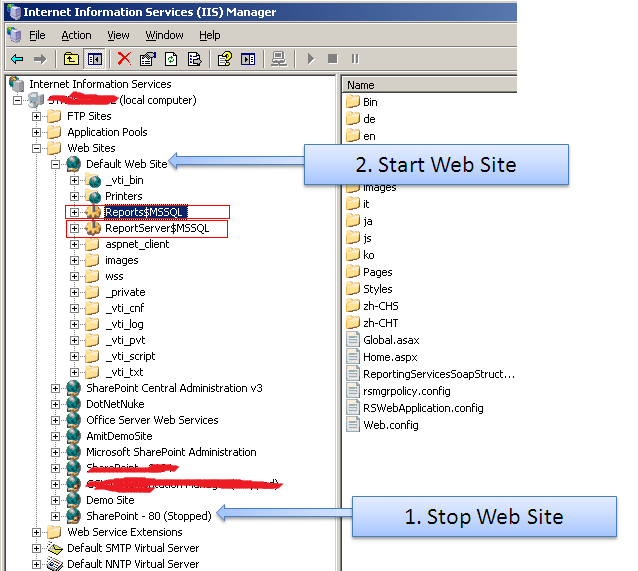
2.Start Reporting Server


1.Open IIS.
2. Do following..

3. Start "Default Web Site".
4. Browse “ Reports$MSSQL”  to check Report Server is running…

3.Create New Visual Studio Project

1. Create New Project


4. Create DataSource


1. Right Click on "Shared Data Sources" folder and select  "Add New Data Source" [Popup will open]


2. Rename Shared Data Source Name to "SharePointWebServiceDataSource".
3. Select Type as "XML".
4. Put Connection String as "  http://ABCD1234:1000/_vti_bin/lists.asmx  "
5. If you have Credentials then provide in Credentials Tab.
6.Click on "OK"  if all complete.
5. To Know more about SharePoint Web Services - Click Here.

5. Get List GUID

1. You need a SharePoint List GUID for creating Reports.So following is a process to get List GUID.
2. You need to download " Stramit SharePoint Caml Viewer " from CodePlex Created by Renaud Comte (MVP).
3. Enter url as " http://ABCD1234:1000 " or  " http://ABCD1234:1000/SubSiteName ".
4. Enter Login Name and Password .
5. And Click on " >>Go<< " Button. Web Application Lists will be populated in List name select box.
6. Select required list.(eg: EmployeesInformation).
7. Copy List GUID.


6. Create  Reports

1. Right Click on "Reports" folder and select  "Add New Report" [Report wizard will open]

2.Select Shared Data Source Name as "SharePointWebServiceDataSource" and click on Next Button.

3. Insert Query String as Follows and Click on Next Button.
To know more about Query string Click Here.
<Query>
<Method Namespace="http://schemas.microsoft.com/sharepoint/soap/" Name="GetListItems">
<Parameters>
<Parameter Name="listName">
<DefaultValue>{EBF0634768DA-0C74-42B8-B76C-5348236158B6D9}</DefaultValue>
</Parameter>
</Parameters>
</Method>
<SoapAction>http://schemas.microsoft.com/sharepoint/soap/GetListItems</SoapAction>
</Query>
 

  * Red Text indicated List GUID.
4. Select report type as Tabular and click on Next Button.
5. Design Report as per requirements or you can modify it later.and click on Next Button.


6. Finally select Report Style and Rename Report with meaningful name. and click in Finish Button.


7. Deploy Reports

1. Go to Project Properties >>>
2. Give TargetDataSourceFolder as "  SharePoint Data Sources ".
3. Give TargetReportFolder as " SharePoint Reports ".
4. Give TargetServerURL as " http://localhost/ReportServer$MSSQL ".
5. And Click on OK Button.
6. Right click on Project  and click on " Deploy ".
7. Reports and Data Sources are automatically copied on Report Server.
8. Install Reporting WebPart on SharePoint Web Application

1. Download RSWebParts.cab.
2. Execute the following commands in shell to install RSWebPart  to SharePoint sites.
    stsadm.exe -o addwppack -force -filename "C:\SharePoint\RSWebParts.cab"
3. In the Add Web Parts Tool Pane, The Web Parts appear in the Web Part List as Report Viewer. Drag and drop Web Part onto the page in the desired locations.
4. On the Report Viewer Web Part menu, click Modify Shared Web Part.
5. In the Report Viewer Tool Pane, in the Configuration section, enter your Report Manager URL. This value is set to "  http://localhost/Reports$MSSQL " by default.
6. Set Rport Path As " /SharePoint Reports/AllEmpInformation "  and click on ok.


9. Connect WebParts

To be Continue...........

SharePoint Reporting

SharePoint Reporting ....

Reference 1