Showing posts with label SharePoint Administration. Show all posts

Sunday, February 17, 2013

Change Date Format of SharePoint Date Time Column


SharePoint 2010 provides a seamless, culture-specific experience that enables site owners to create sites in a specific language and configure the regional settings that are appropriate for those sites.

SharePoint Server 2010 uses the following types of regional settings: locale, time zone, sort order, calendar, and currency. You can specify the locale, sort order, time zone, and calendar settings on the Regional Settings page.

Change Date Format:
1) Go to "Site settings" from "Site Actions" Tab.
2) Under the "Site Administration" Section click on "Regional settings".
3) In "Locale" choice select desire option; example format DD/MM/YYYY you need to select "English (United Kingdom)".


Tuesday, May 22, 2012

SharePoint 2010 Capacity Planning

This article provides an overview of how to effectively plan and manage the capacity of SharePoint 2010 environments. This article also describes how to maintain a good understanding of the capacity needs and capabilities of your deployment, by analysis of performance and volume data.

Capacity management is an ongoing process, You need to plan for growth and change, so that your SharePoint Server 2010–based environment can continue to deliver an effective business solution.
The capacity management model includes additional steps to help you validate and tune the initial architecture, and provides a feedback loop for re-planning and optimizing the production environment until it can support design goals with optimal choices of hardware, topology, and configuration.

# The following specialized terms are used in SharePoint 2010 capacity management:

RPS:   Requests per second. The number of requests received by a farm or server in one second.
Peak hours:   The time or times during the day when load on the farm is at its maximum.
Peak load :  The average maximum daily load on the farm, measured in RPS.
Load spike:   Transient load peaks that fall outside usual peak hours. These can be caused by unplanned increases in user traffic, decreased farm throughput because of administrative operations, or combinations of such factors.
Scale up:   To scale up means to add resources such as processors or memory to a server.
Scale out :  To scale out means to add more servers to a farm.
Throughput:  Throughput is defined as the number of concurrent requests that a server or server farm can process.


# Limits and boundaries:
Web application limits

Content database size ( general usage scenarios)
200 GB per content database
Content database items
60 million items including documents and list items
Site collections per content database
2,000 recommended
5,000 maximum
Web site
250,000 per site collection
Site collection size
Maximum size of the content database
Web parts
25 per wiki or Web part page

List and library limits
The following table lists the recommended guidelines for lists and libraries.
List row size8,000 bytes per row
File sizeThe default maximum file size is 50 MB and  Maximum 2 GB.
Documents30,000,000 per library
Major versions400000
Items30,000,000 per list
List view lookup threshold8 join operations per query
List view threshold5000
List view threshold for auditors and administrators20000
Subsite2,000 per site view

Column limits
SharePoint Server 2010 data is stored in SQL Server tables.

Single line of text28 bytes
Multiple Lines of Text28 bytes
Choice28 bytes
Number12 bytes
Date and Time12 bytes
Lookup4 bytes
Yes / No5 bytes
Person or group4 bytes
Hyperlink or picture56 bytes
Calculated28 bytes

Blog limits
The following table lists the recommended guidelines for blogs.

Blog posts5,000 per site
Comments1,000 per post


Groups limits 

Number of SharePoint groups a user can belong to5000
Users in a site collection2 million per site collection
Active Directory Principles/Users in a SharePoint group5,000 per SharePoint group
SharePoint groups10,000 per site collection


References:
2.       Column limits

Thursday, August 25, 2011

Quick Notes: How to Detect the Installed Edition of SharePoint 2010

Many times it is required to know the current edition of SharePoint 2010 installed.
If the behavior of your custom application depends on the installed SKU of Microsoft SharePoint Server 2010, you can determine which SKU of SharePoint Server 2010 is installed locally by using the Power shell command and GUID of SharePoint 2010 Editions.
In this topic I will explain the how to get current edition of SharePoint 2010.
1.      You can get GUID of installed SharePoint 2010 from registory within the registry key HKLM\SOFTWARE\Microsoft\Shared Tools\Web Server Extensions\14.0\WSS\InstalledProducts.
2.      Or You can also use the PowerShell command get-spfarm | select Products to output GUIDs for the installed SKUs.
3.      As you get the GUID then you can check it with following table.
SharePoint 2010 Edition
GUID
SharePoint Foundation 2010
BEED1F75-C398-4447-AEF1-E66E1F0DF91E
Search Server Express 2010
1328E89E-7EC8-4F7E-809E-7E945796E511
SharePoint Server 2010 Standard Trial
B2C0B444-3914-4ACB-A0B8-7CF50A8F7AA0
SharePoint Server 2010 Standard
3FDFBCC8-B3E4-4482-91FA-122C6432805C
SharePoint Server 2010 Enterprise Trial
88BED06D-8C6B-4E62-AB01-546D6005FE97
SharePoint Server 2010 Enterprise
D5595F62-449B-4061-B0B2-0CBAD410BB51
Search Server 2010 Trial
BC4C1C97-9013-4033-A0DD-9DC9E6D6C887
Search Server 2010
08460AA2-A176-442C-BDCA-26928704D80B
Project Server 2010 Trial
84902853-59F6-4B20-BC7C-DE4F419FEFAD
Project Server 2010
ED21638F-97FF-4A65-AD9B-6889B93065E2
Office Web Companions 2010
926E4E17-087B-47D1-8BD7-91A394BC6196

Thursday, June 17, 2010

Windows SharePoint Services 3 Search Error and Event ID:2424

This issue occurs when the service account for the Windows SharePoint Services Search service is configured to use the Network Service account And SharePoint Central Administration App Pool is not running on Network Service.

Following are the steps to resolved this issue....

A. Configure SharePoint Central Administration App Pool
1. Go to IIS Manager (inetmgr.exe)


2. Open Application Pools >  SharePoint Central Administartion > (Right Click) > Properties
3. In Properties > Click on Identity Tab > Select Predefined as Network Service. > Ok
4. Start Central Admin Site.

B. Configure Windows SharePoint Services 3 Search  Service
1. Go to Services (Start > Control Panel >Administrative Tools > Services)

2. Go to Peoperties of Windows SharePoint Services Search.
3. In Logon Tab Select Log on as: This Account .
4. Type a name as " NT AUTHORITY\LocalService " . No need to provide passwords keep it blank.
5.Click On OK and Restart the Service.

C. Configure Central Admin Site                                                

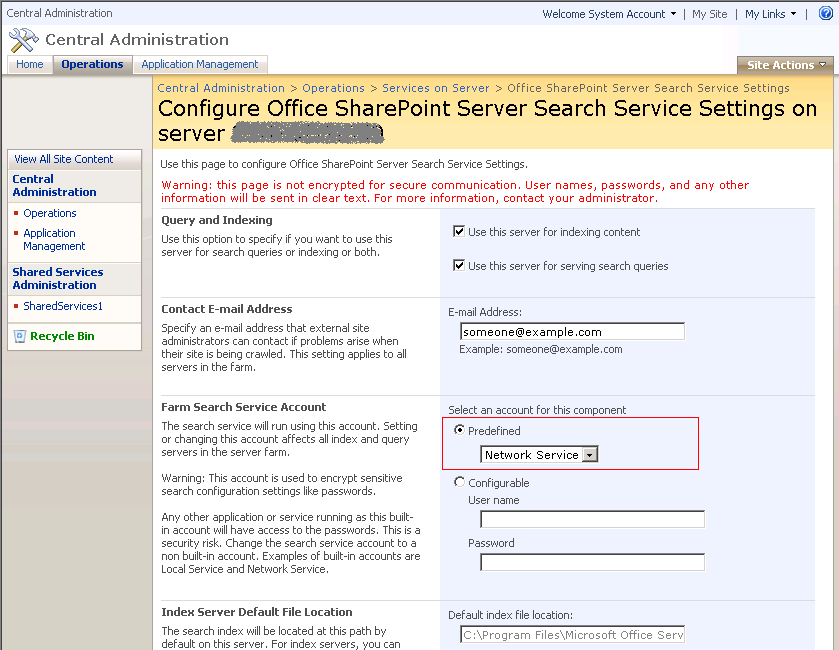
1. Open Central Admin Site > Application Managment > (Search) Manage search service

2. In " Query and Index Servers " section click on " Microsoft Search Server Indexing and Query ".


3. " Configure Office SharePoint Server Search Service Settings " page will be open.

4. Then in " Farm Search Service Account  " section , Select "Select an account for this component  " >
* Predefined > [Network Services].  >Click on OK.
5. Then Start Full Crawl from SharedServices.

---------Look at that our search is working fine!--------------------------------------------
Enjoy !